What are Apple Maps Guides?
Apple Maps Guides are curated collections of places that you can create, organize, and share directly within the Maps app on iPhone, iPad, and Mac. Think of them as personal travel itineraries or themed lists -- your favorite coffee shops in a city, must-visit restaurants for an upcoming trip, or a walking tour of historic landmarks.
Guides were introduced in iOS 14 and have been expanded with each subsequent release. Unlike simple pins or favorites, Guides let you group related places into named collections that sync seamlessly across all your Apple devices via iCloud. Each Guide can include restaurants, shops, parks, landmarks, hotels, and any other point of interest that Apple Maps recognizes.
Apple also features editorially curated Guides from trusted publishers like Lonely Planet, The Washington Post, and AllTrails. These appear when you search for a city or neighborhood and offer expert-picked recommendations. But the real power is in creating your own Guides tailored to your interests and travel plans.
How to create a Guide on iPhone and iPad
Creating a new Guide on iOS takes just a few taps. Here is a step-by-step walkthrough:
- Open Apple Maps on your iPhone or iPad.
- Swipe up on the bottom sheet to reveal your saved items and recent searches.
- Scroll down to the "My Guides" section. If you have never created a Guide before, you will see a prompt to get started.
- Tap "New Guide" at the bottom of the Guides list.
- Enter a name for your Guide -- for example, "Tokyo Trip 2026" or "Best Brunch Spots".
- Optionally add a cover photo by tapping the camera icon. You can choose from your photo library or take a new picture.
- Tap "Create" and your empty Guide is ready. You can now start adding places to it.
The Guide appears in your "My Guides" list immediately. From here you can tap into it to add places, rearrange them, or edit the name and cover photo at any time.
Creating a Guide on Mac
The process on macOS is similar but uses the desktop Maps interface:
- Open Maps on your Mac.
- Click the sidebar icon (or press Cmd+Shift+L) to reveal the left panel.
- Click "Add Guide" at the bottom of the Guides section in the sidebar.
- Name your Guide and press Return.
Guides created on your Mac sync to your iPhone and iPad automatically, so you can plan on a big screen and navigate on the go.
How to add places to a Guide
Once you have a Guide, adding places is straightforward. There are several ways to do it depending on your workflow:
Method 1: From a place card
- Search for a place in Apple Maps or tap on any location pin.
- On the place card, scroll down and tap "Add to..." (the bookmark icon).
- Select the Guide you want to add it to, or create a new Guide on the spot.
Method 2: From inside the Guide
- Open your Guide from the "My Guides" list.
- Tap the "+" button or "Add a Place".
- Search for the location by name or address.
- Tap the place from the search results to add it.
Method 3: From a long press on the map
- Long-press anywhere on the map to drop a pin.
- Tap the dropped pin to open its card.
- Tap "Add to..." and choose your Guide.
Each place you add shows up in your Guide with its name, category, address, and a thumbnail photo. You can reorder places by dragging them (tap "Edit" first on iOS) and remove individual places by swiping left.
How to share Guides with others
Apple Maps Guides are designed to be shared. Whether you are coordinating a group trip or recommending your favorite spots to a friend, sharing is built right in.
Share via link or message
- Open the Guide you want to share.
- Tap the Share button (the square with an upward arrow).
- Choose how to share: Messages, Mail, AirDrop, or copy the link.
When someone receives your Guide link on an Apple device, tapping it opens the Guide directly in Apple Maps. They can browse all the places, get directions to any of them, and save the Guide to their own collection. The shared Guide is a snapshot -- if you add or remove places later, the recipient's copy does not update automatically.
Share via AirDrop
For in-person sharing, AirDrop is the fastest option. Tap Share, select AirDrop, and choose the nearby device. The recipient gets the full Guide instantly without needing a link.
Collaborative Guides
Starting with iOS 17, Apple introduced collaborative Guides. When you share a Guide, you can choose to make it collaborative, allowing invited participants to add and remove places. This is ideal for group trip planning where everyone contributes their must-visit spots. Each participant's additions sync in real time via iCloud.
After converting your Google Maps saved places with GoToAppleMaps, you receive a Guide link that you can share with anyone on iPhone, iPad, or Mac -- perfect for migrating a group's shared list from Google Maps to Apple Maps.
How to import places from Google Maps into a Guide
One of the most common questions about Apple Maps Guides is whether you can import your existing saved places from Google Maps. Apple Maps does not offer a built-in import feature, but GoToAppleMaps bridges the gap.
Step-by-step import process
- Export from Google Maps: Go to Google Takeout and export your Google Maps data. Select "Saved Places" to get a CSV or GeoJSON file of all your saved locations.
- Upload to GoToAppleMaps: Visit gotoapplemaps.com and upload the exported file. The tool parses each place from your Google Maps data.
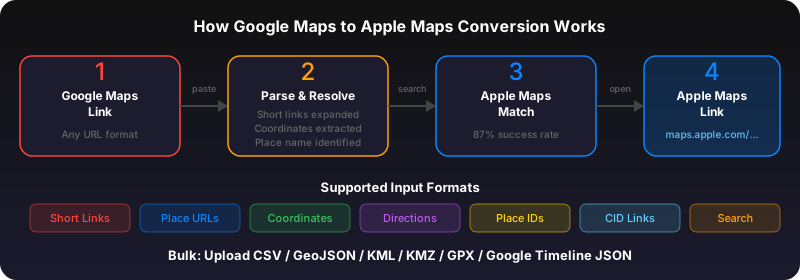
- Automatic matching: GoToAppleMaps searches the Apple Maps catalog for each place, matching by name and coordinates. The typical match rate is above 85%.
- Generate Guide link: Once matching is complete, the tool generates a single Apple Maps Guide URL containing all your matched places.
- Open on your device: Tap the Guide link on your iPhone, iPad, or Mac. Apple Maps opens with all your imported places organized in a new Guide.
For a detailed walkthrough with screenshots, see our dedicated guide on converting Google Maps saved places to Apple Maps.
Quick Convert for individual links
If you just need to convert a single Google Maps link rather than a full export, use the Quick Convert tool. Paste any Google Maps URL -- including short links, place links, and coordinate links -- and get an Apple Maps link instantly. For more on the different Google Maps URL formats, see our Google Maps URL formats guide.
Guide limits, syncing, and tips
Here are the practical details you should know when working with Apple Maps Guides:
- Maximum places per Guide: Each Guide can hold up to 200 places. For larger collections, split them into multiple themed Guides (e.g., "Paris Restaurants" and "Paris Museums").
- Number of Guides: There is no documented limit on how many Guides you can create. Power users have reported maintaining dozens without issues.
- iCloud sync: Guides sync across all devices signed into the same Apple Account with iCloud Maps enabled. Changes propagate within seconds on a good connection.
- Offline access: Guide metadata (place names, addresses) is available offline once synced. However, map tiles and detailed place information require an internet connection.
- Editing: You can rename a Guide, change its cover photo, reorder places, and remove individual places at any time. On iOS, tap "Edit" in the Guide view; on Mac, right-click the Guide name.
- Deleting a Guide: Swipe left on a Guide in the list (iOS) or right-click and select Delete (Mac). Deleted Guides are removed from all synced devices. There is no undo, so be careful.
- Sorting: Inside a Guide, you can sort places by name, distance from your current location, or date added. Tap the sort button at the top of the Guide.
Apple Maps Guides vs Google Maps Lists
Both Apple Maps and Google Maps offer ways to save and organize places, but the implementations differ in meaningful ways. Here is a side-by-side comparison:
| Feature | Apple Maps Guides | Google Maps Lists |
|---|---|---|
| Max places per collection | 200 | Unlimited (practical limit ~10,000) |
| Collaboration | Yes (iOS 17+) | Yes |
| Cross-platform | Apple devices only | iOS, Android, Web |
| Offline access | Metadata only | Full offline maps available |
| Custom cover photo | Yes | No (auto-generated) |
| Editorially curated collections | Yes (publisher Guides) | Limited (local expert lists) |
| Sorting options | Name, distance, date added | Name, date added, custom order |
| Notes on saved places | No | Yes |
| Export/import | Share via link only | Google Takeout CSV/GeoJSON |
| Privacy | Data stays on-device + iCloud | Stored on Google servers |
Apple Maps Guides win on privacy and curated editorial content. Google Maps Lists win on cross-platform access and the ability to add notes. If you are switching from Google Maps to Apple Maps, the good news is that you can migrate your saved places without losing your carefully curated lists.
Use GoToAppleMaps to convert your Google Maps saved places and lists into Apple Maps Guides -- free, private, no signup required.
Frequently asked questions
Apple Maps Guides can hold up to 200 places each. If you need to save more locations, create multiple Guides organized by theme, neighborhood, or trip. There is no limit to the number of Guides you can create.
Apple Maps Guides can only be opened natively on iPhone, iPad, and Mac. If you share a Guide link with an Android user, they will be directed to a web preview on maps.apple.com, but they cannot add the Guide to their device. For cross-platform sharing, consider sharing individual place links instead.
Yes. Apple Maps Guides sync automatically via iCloud across your iPhone, iPad, and Mac as long as all devices are signed into the same Apple Account and have iCloud syncing enabled for Maps. Changes you make on one device appear on all others within seconds.
Google Maps does not export directly to Apple Maps, but you can use GoToAppleMaps to convert your saved places. Export your Google Maps data via Google Takeout, upload the CSV file to GoToAppleMaps, and the tool will match each place in Apple Maps and generate a Guide link you can open on your device.