Why migrate your saved places from Google Maps to Apple Maps?
Years of saved restaurants, bookmarks, starred places, and custom lists sit locked inside Google Maps. If you've switched to iPhone or simply prefer Apple Maps' privacy, offline maps, and Siri integration, those saved places are stranded. Google doesn't offer a direct export-to-Apple-Maps button, and Apple Maps can't import from Google. But with the right workflow -- Google Takeout export, a CSV conversion step, and GoToAppleMaps -- you can move everything over in under 15 minutes. Your places become Apple Maps Guides that sync across all your devices via iCloud.
Step 1: Export your saved places with Google Takeout
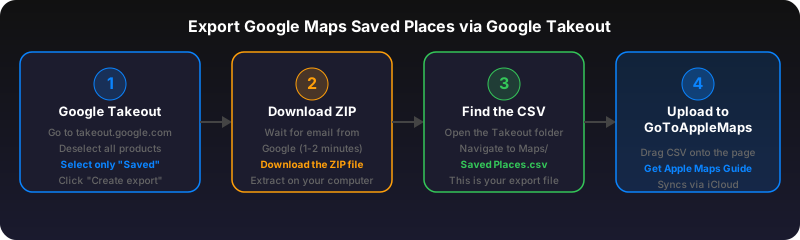
Google Takeout is Google's official data export tool. Go to takeout.google.com, sign in with the Google account that has your saved places, and deselect all products. Then scroll down and select only "Saved" (under Maps) or "Maps (your places)" depending on your account. Click "Next step," choose "Export once" and ".zip" format, then click "Create export." Google prepares your file (usually within minutes for Maps data). Download the ZIP and extract it. Inside you'll find CSV files for each list: Starred Places, Favorites, Want to Go, and any custom lists you created. Each CSV contains place names, addresses, Google Maps URLs, and notes you added.
Step 2: Upload your CSV to GoToAppleMaps
Go to gotoapplemaps.com and upload the CSV file from your Google Takeout export. The bulk converter automatically detects Google Maps URLs in your data and processes each one: it resolves short URLs, extracts the place name or coordinates, and searches Apple Maps for the best match. You'll see a live progress bar as each place is processed. The tool handles all Google Maps URL formats -- standard place links, coordinate pins, short links (goo.gl/maps), and place ID links. If you exported multiple lists, upload each CSV separately to create organized Apple Maps Guides for each category.
Understanding match rates and what transfers
Not every Google Maps place will have an exact match in Apple Maps. Typical match rates are 85-98% depending on location type and region. Popular restaurants, hotels, landmarks, and chain businesses match at nearly 100%. Small local businesses, temporary pop-ups, and places in regions with limited Apple Maps coverage may not match. When a place doesn't match, GoToAppleMaps lists it separately so you can search manually in Apple Maps. Place names and coordinates transfer. Google Maps reviews, photos you uploaded, and your star ratings do not transfer -- those are Google-proprietary data. Notes you added to saved places in Google Maps are preserved in the CSV and can be included in your Apple Maps Guide.
How iCloud syncs your converted Guides
Once you open an Apple Maps Guide on any Apple device, it syncs automatically via iCloud to all your other devices signed into the same Apple ID. Open the Guide link on your Mac and it appears on your iPhone and iPad within seconds. You can also add converted places to your existing Guides or Favorites in Apple Maps. Guides support up to 200+ locations each, so even large Google Maps collections fit easily. Unlike Google Maps saved places (which require a Google account and internet), Apple Maps Guides work offline once the map region is downloaded (iOS 17+). This makes converted places more accessible during travel.
Offline access and ongoing tips
After converting your saved places, download offline maps for regions you visit frequently. On iPhone, go to Settings > Apps > Maps > Offline Maps (or open Apple Maps, tap your profile, and select Offline Maps). Download maps for your city, upcoming travel destinations, or any area where you have many saved places. Your converted Guides remain fully accessible offline -- you can browse places, get directions, and see business details without cellular data. Going forward, when you receive a Google Maps link from a friend or find a place in Google Search, use the Quick Convert tool or the GoToAppleMaps iOS app to add it to your Apple Maps collection instantly. Over time, your Apple Maps library becomes your single source of truth for saved places.
Use GoToAppleMaps to convert your Google Maps links to Apple Maps in seconds — free, private, no signup.
Frequently asked questions
The Google Takeout export typically takes 2-5 minutes for Maps data. Uploading and converting the CSV takes another 1-2 minutes depending on how many places you have. Most people complete the entire migration in under 15 minutes.
No. Google Takeout creates a copy of your data. Your saved places remain untouched in Google Maps. You can keep using both apps if you want.
Yes. Google Takeout exports each list as a separate CSV file (Starred Places.csv, Favorites.csv, Want to Go.csv, plus any custom lists). Upload each one separately to create individual Apple Maps Guides that mirror your Google Maps organization.
No. Reviews, photos, and star ratings are Google-proprietary data and cannot be exported to Apple Maps. Only place names, locations, addresses, and your personal notes transfer via the CSV export.
GoToAppleMaps shows unmatched places in a separate list with the original Google Maps link. You can search for them manually in Apple Maps -- sometimes the business has a slightly different name or has been recategorized. Match rates are typically 85-98%.