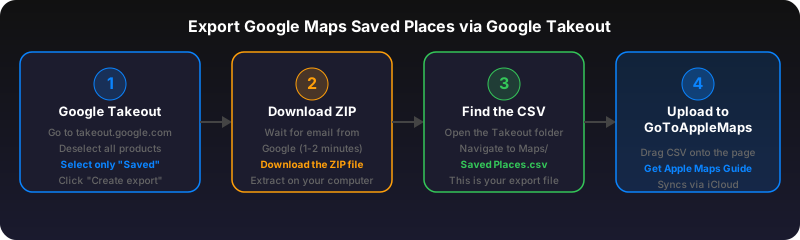
Why export your Google Maps saved places?
Over the years you have probably saved hundreds of places in Google Maps -- restaurants, travel destinations, bookmarked addresses, custom lists for trips. That data is valuable, but it is locked inside Google's ecosystem. Here are the most common reasons people export:
- Switching to Apple Maps. Apple Maps has caught up in coverage and offers better privacy. Exporting lets you bring your saved places along instead of starting from scratch.
- Backup and data portability. Google could change its saved-places feature at any time. A local copy of your data means you always have access, regardless of service changes.
- Sharing with others. Exported files (CSV, KML, GeoJSON) are universal. You can share a curated list with friends, embed it in a blog post, or load it into any GIS tool.
- Migration to other services. Whether you are moving to Apple Maps, HERE WeGo, Organic Maps, or a custom mapping solution, an export is the first step.
Google does not make exporting obvious, but it is fully supported through Google Takeout. Below are three methods, starting with the most complete.
Method 1: Google Takeout (recommended)
Google Takeout is the official data export tool for your entire Google account. It is the most complete way to export saved places because it includes every list, every starred place, and every labeled location. Here is how to use it:
Step-by-step walkthrough
- Go to
takeout.google.comand sign in with the Google account that has your saved places. - Click "Deselect all" at the top of the product list. By default, Takeout selects every Google service. You only want Maps data, so deselect everything first.
- Scroll down and check "Maps (your places)" -- this is sometimes labeled "Saved" or "Maps" depending on your account language. Make sure the checkbox is enabled.
- Also check "Maps" if it appears as a separate item. Some accounts split "Maps (your places)" and "Maps" into two entries. The first contains your saved/starred places; the second contains your reviews, location history, and timeline data.
- Click "Next step" at the bottom of the page.
- Choose your export settings:
- Delivery method: "Send download link via email" is the simplest. You can also export directly to Google Drive, Dropbox, OneDrive, or Box.
- Frequency: "Export once" unless you want recurring exports.
- File type: .zip is fine for most users. .tgz works too but requires different extraction tools on Windows.
- File size: Leave at 2 GB. Maps data is tiny -- usually under 1 MB total.
- Click "Create export" and wait. For Maps-only exports, the archive is usually ready in under 5 minutes. Google sends you an email with a download link.
- Download and extract the .zip file. Inside, you will find a folder called
Takeout/Maps (your places)/orTakeout/Saved/.
What you get from Takeout
The exported archive contains several files:
Saved Places.csv-- Your starred/saved places. One row per place. This is the file most people are looking for.*.csvfiles for each custom list -- If you created lists like "Berlin Restaurants" or "Japan 2025 Trip", each gets its own CSV file named after the list.Reviews.json-- Your Google Maps reviews in JSON format, including text, rating, and the place you reviewed.Labeled Places.json-- Your Home, Work, and other labeled addresses in GeoJSON format.
If you select all Google services in Takeout, the export can take hours or days (especially if you have lots of Google Drive or Photos data). Selecting only Maps keeps it fast -- usually under 1 minute of processing time.
Method 2: Google My Maps export (KML/KMZ)
If you have created custom maps in Google My Maps (the map-creation tool, separate from regular saved places), you can export each map individually as KML or KMZ. This method does not export your starred/saved places from regular Google Maps -- only your My Maps layers.
How to export from My Maps
- Open
google.com/maps/d/and sign in. - Open the map you want to export.
- Click the three-dot menu next to the map title.
- Select "Export to KML/KMZ".
- Choose whether to export the entire map or a single layer. Check "Export as KML instead of KMZ" if you want a plain-text XML file you can inspect and edit.
- Click "Download" and save the file.
KML (Keyhole Markup Language) is an XML-based format originally created for Google Earth. It stores place names, coordinates, descriptions, and styling. KMZ is just a zipped KML file. Both formats are widely supported by mapping tools, GIS applications, and GPS devices.
When to use this method
Use the My Maps export when you need richer data than what Takeout provides -- for example, custom icons, polygon boundaries, route lines, or multi-layer maps. For simple saved-places migration, Takeout (Method 1) is faster and more complete.
Method 3: Browser-based extraction
If Takeout is not working for you (some enterprise/Workspace accounts have it disabled), or if you need real-time data rather than a static export, you can extract saved places directly from the Google Maps web interface using browser developer tools or extensions.
Using the browser console
Google Maps loads your saved places as structured data in the page. Advanced users can open Chrome DevTools (F12), go to the Network tab, navigate to your saved lists in Google Maps, and inspect the XHR responses. The responses contain place names, coordinates, and place IDs in a protobuf-like format. This approach is fragile -- Google changes its internal API format frequently -- but it gives you the most up-to-date data.
Using browser extensions
Several browser extensions automate the extraction of Google Maps saved places. Look for extensions that export to CSV or JSON format. Be cautious about which extensions you install -- they require access to your Google Maps data, so only use open-source or well-reviewed options. Check the extension's permissions carefully before granting access.
Bookmarklet approach
Some developers have built bookmarklets that scrape the currently visible saved-places list from Google Maps and output a CSV. The basic approach is: navigate to google.com/maps, open your saved list, scroll to load all items, then run the bookmarklet to extract the DOM content. This is the least reliable method because it depends on Google's current HTML structure, which changes without notice.
Google Takeout (Method 1) is the best option for most people. It is official, complete, and produces clean CSV files that are easy to work with. Use Methods 2 and 3 only if you have specific needs that Takeout does not cover.
Understanding the export files
Once you have your export, here is what each file format contains and how to work with it.
CSV file structure (Takeout)
The CSV files from Google Takeout have a simple structure. Each row is a saved place with these columns:
Title,Note,URL,Comment- Title -- The place name as it appears in Google Maps (e.g., "Alexanderplatz" or "Joe's Coffee").
- Note -- Any personal note you added when saving the place. Usually empty.
- URL -- A Google Maps URL for the place. This is typically a
google.com/maps/place/...link containing the place name and coordinates. - Comment -- Additional metadata. Often empty for regular saved places.
The URL column is the most important field for migration. It contains enough information (place name and/or coordinates) to find the same location in another mapping service. The URL typically follows the format described in our Google Maps URL formats guide.
GeoJSON structure (labeled places)
Labeled places (Home, Work, etc.) are exported as GeoJSON -- a standard format for encoding geographic data structures. A typical entry looks like this:
{
  "type": "Feature",
  "geometry": {
    "type": "Point",
    "coordinates": [13.404954, 52.520008]
  },
  "properties": {
    "name": "Work",
    "address": "Alexanderplatz 1, 10178 Berlin",
    "google_maps_url": "https://maps.google.com/?cid=..."
  }
}
Note that GeoJSON uses [longitude, latitude] order -- the opposite of what most people expect. Latitude comes second. This is a common source of bugs when parsing geographic data.
KML structure (My Maps)
KML files are XML documents with a .kml extension. Each place is represented as a <Placemark> element containing a <name>, optional <description>, and <Point> with <coordinates>. KML also supports lines, polygons, and styling -- features that CSV and GeoJSON exports from Takeout do not include.
<Placemark>
  <name>Brandenburger Tor</name>
  <description>Must visit</description>
  <Point>
    <coordinates>13.377704,52.516275,0</coordinates>
  </Point>
</Placemark>
Like GeoJSON, KML uses longitude-first coordinate order: longitude,latitude,altitude.
What to do next: Import into Apple Maps
Now that you have your exported data, the most common next step is importing it into Apple Maps. Apple Maps does not support direct CSV or KML import, but GoToAppleMaps bridges the gap.
Using GoToAppleMaps to convert your export
- Go to gotoapplemaps.com and upload your Takeout CSV file. The tool reads the Title and URL columns automatically.
- Each place is matched to its Apple Maps equivalent using Apple's MapKit JS search API. The tool resolves Google Maps URLs, extracts place names and coordinates, and finds the best match in Apple Maps.
- Download an Apple Maps Guide containing all your converted places. Open the Guide link on your iPhone or Mac, and all places are added to your Apple Maps Guides collection.
For details on the conversion process, see our complete guide or use the Quick Convert tool for individual links.
Other import options
- Manual re-saving: Open each Google Maps URL from the CSV, find the same place in Apple Maps, and save it. This is tedious for large lists but works for small collections (under 20 places).
- GIS tools: Import your KML or GeoJSON into QGIS, Google Earth Pro, or Mapbox Studio for visualization and analysis.
- Spreadsheet analysis: Open the CSV in Google Sheets or Excel to filter, sort, and categorize your places before deciding which ones to import.
Use GoToAppleMaps to convert your Google Maps saved places to Apple Maps Guides in seconds -- free, private, no signup required.
Frequently asked questions
Yes. Google Takeout exports every list you have in Google Maps -- Starred places, Favorites, Want to go, and any custom lists you created. Each list is exported as a separate CSV file. Labeled places (Home, Work) are exported separately in a JSON file.
Google Takeout exports saved places as CSV files (one per list) and GeoJSON files for your reviews and labeled places. If you use Google My Maps, you can also export as KML or KMZ. The CSV files contain columns for Title, Note, URL, and Comment.
Apple Maps does not have a native bulk import feature, but you can use GoToAppleMaps to convert your exported CSV file into an Apple Maps Guide. Upload your Takeout CSV, and each place gets matched to its Apple Maps equivalent and added to a shareable Guide.
For Maps data specifically, Takeout usually completes in under 5 minutes. Google sends you an email with a download link when the archive is ready. Larger exports that include other Google services (Drive, Photos) can take hours or even days.