Why Apple Maps for travel
Apple Maps works offline on iPhone (iOS 17+). Download the region before your trip and navigate without data. Guides sync across all your devices. And Apple Maps' privacy means your travel locations aren't feeding Google's ad targeting.
Step 1: Gather your Google Maps links
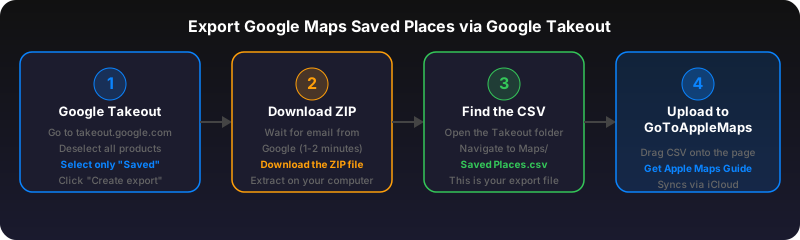
Open Google Maps and find the saved lists for your trip (Favorites, Want to Go, Starred Places). You can also use Google Takeout to export all saved places as a CSV. Alternatively, copy individual Google Maps links from your travel planning spreadsheet or Notion.
Step 2: Convert to an Apple Maps Guide
Upload your file or paste your links at gotoapplemaps.com. The tool matches each place to Apple Maps and creates a Guide. You can also use the Trip Planner for AI-generated day trips that include Apple Maps links.
Step 3: Download for offline use
Open the Guide on your iPhone. Go to Settings > Maps > Offline Maps and download the region. Now you have all your trip locations available without internet -- perfect for international travel or areas with spotty coverage.
Use GoToAppleMaps to convert your Google Maps links to Apple Maps in seconds — free, private, no signup.
Frequently asked questions
Yes. Convert each category separately (restaurants, hotels, activities) and you'll get separate Guides you can organize in Apple Maps.
Yes. Apple Maps has detailed maps for most countries. Coverage varies for smaller cities, but major tourist destinations are well-covered with points of interest, transit, and Look Around.