Common use cases for spreadsheet conversion
Real estate agents with property listings, event planners with venue locations, travel bloggers with restaurant recommendations, sales teams with client offices -- if you have Google Maps links in a spreadsheet, you can convert them all to Apple Maps at once.
Step 1: Export your data
In Google Sheets, go to File > Download > Comma-separated values (.csv). Make sure your Google Maps links are in one column. The tool also supports links mixed with other data -- it will find and convert the URLs automatically.
Step 2: Upload to GoToAppleMaps
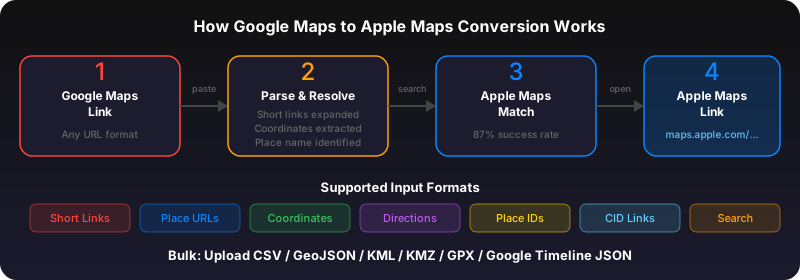
Go to gotoapplemaps.com and upload your CSV file. The bulk converter processes all links, resolves short URLs, extracts coordinates, and finds each place in Apple Maps. You'll see a progress bar and match results.
Step 3: Open your Apple Maps Guide
When conversion finishes, you get a single Apple Maps Guide URL. Open it on your iPhone or Mac and all locations appear as pins on your map. You can also share this Guide link with anyone.
Use GoToAppleMaps to convert your Google Maps links to Apple Maps in seconds — free, private, no signup.
Frequently asked questions
The free tier handles up to 50 places per upload. For larger lists, split your CSV into batches.
The tool shows which places matched and which didn't. Common failures: deleted places, private/restricted locations, or links to map areas (not specific places).