How WhatsApp shares locations
When someone sends a location in WhatsApp, it can arrive as either a WhatsApp native location pin (which uses Apple Maps on iPhone by default) or a Google Maps link (which opens Google Maps or Safari). The problem only happens with pasted Google Maps URLs, not native location shares.
Step 1: Long-press the link
In WhatsApp, long-press the Google Maps link. Tap "Copy Link" from the popup menu. Don't tap the link directly -- that would open it in Google Maps or Safari.
Step 2: Convert the link
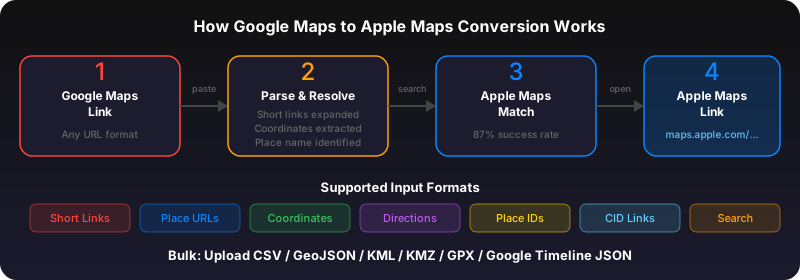
Open Safari and go to gotoapplemaps.com/quick. Paste the copied link and tap Convert. You'll get an Apple Maps link.
Step 3: Open in Apple Maps
Tap the converted link. Apple Maps opens with the exact location pinned. You can get directions, save it to a Guide, or share it with someone else as an Apple Maps link.
Pro tip: Use the share sheet
With the GoToAppleMaps iOS app installed, you can skip the copy-paste. Long-press the Google Maps link in WhatsApp, tap Share, then tap GoToAppleMaps. The location opens in Apple Maps in one step.
Use GoToAppleMaps to convert your Google Maps links to Apple Maps in seconds — free, private, no signup.
Frequently asked questions
WhatsApp's native location pin (the one you send via the + button > Location) already opens in Apple Maps on iPhone. You only need to convert pasted Google Maps URLs.
Yes. The conversion works the same for any Google Maps link regardless of where it appears in WhatsApp.